
Leaderboard
-

troph
Full Members218Points22820Posts -

tx 3 putt
Legacy Members139Points79509Posts -
Homesickhorn
Legacy Members128Points2081Posts -
royiv
Legacy Members120Points7732Posts



Popular Content
Showing content with the highest reputation on 07/06/25 in all areas
-
49 pointsFor every dollar you donate, my law firm will donate two. We’re looking to raise $18,000 by collecting up to $6,000 in donations to the Kerr County Relief Fund operated by the Community Foundation of the Texas Hill Country. Go to the following link to make your donation and in the section at the end regarding “Tribute Information,” enter “Slingshot Law” and choose to notify angie@slingshotlaw.com. https://cftexashillcountry.fcsuite.com/erp/donate/create/fund?funit_id=420149 points
-
39 points
-
28 pointsHi everyone. We live between Ingram & Hunt. Here is how you can help: We are set up at City West Church with food for first responders. Other locations that are feeding folks are The Kerr County Youth Event Center (The Ag Barn) and Cross Kingdom Church. We have plenty of volunteers and food at City West. There may be needs at the other two locations. For those wanted to help with search, please meet at the Centerpoint Fire Dept tomorrow morning. Harry Holt is the coordinator. Ask for Harry when you get to the station. We had around 200 searchers today, but will not have the folks tomorrow, so help is greatly needed. There are piles of debris 20-25 feet high and this all needs to be gone through. We do not need any equipment, just people willing to work. For those inclined, please give to a nonprofit that will help Kerr County folks and not pocket the $. REK's non profit is good (he is a local). Another is Blind Faith Foundation, which is located in Ingram and the head of it is a friend of mine. For those that cannot give or help out, we would appreciate your prayers. I have been around for over six decades and have never seen devastation like this. God Bless Ya'll. West Kerr Horn28 points
-
26 pointsThats what is taking place. Ive been out there twice now and my body is completely out of whack at this point. You just cant help but expect the worst. The search teams are working extremely hard but in my opinion the reason the officials arent being more forthcoming, is because they're trying to figure out when they have to tell everyone they cant even find most of the bodies. Its my expectation that we lost a lot of wonderful people and a lot of beautiful little girls. Its such an important place to so many people, for so many thats their happy spot. Especially talking to the Mystic people, something that brought them true joy has brought them devastation on a level that they just cant comprehend yet. Theyre just paralyzed. And the bad news just keeps coming in. Sorry if Im sounding dramatic, but I do think something dramatic has taken place that will leave a major scar.26 points
-
25 points
-
23 pointsAs someone who was raised in a Christian household and is no longer of that persuasion, I really struggle with the prayer stuff in these situations. I’m not saying this to be contentious or an asshole (even though Greg Abbott can get fucked), but really just from a religious or philosophical frustration that’s on a long list of reasons that turned me away from church. How do you say prayers work when children are dead and other children are missing? Did those families not pray enough? Did God not love those children and their families? My heart aches for the families involved in this and everyone in their extended orbit. Very somber in our household and I’ve hugged my own child so much and been so attached to her and thankful for our family’s safety. I just don’t understand how such a horrific event can be followed up with “prayer works” when families are without their children. From my time in the church, I assume this goes back to the idea that all have sinned and deserve death, and it’s only by the grace of God that some people get to live and go on to heaven. So the dead people got what they deserved or something like that. I don’t know but that doesn’t work for me when God apparently made this world and everyone in it and rigged this game in a way that most people ultimately lose. If a human did that we would call them a sociopath. Sorry I’m rambling and I apologize if this is the wrong time or place or inappropriate in the immediate aftermath. Having an elected leader say “prayer works” is a little bit triggering on a topic I always struggle with.23 points
-
22 pointsSounds like La Junta could’ve been really bad too save for the efforts of some bad ass counselors.22 points
-
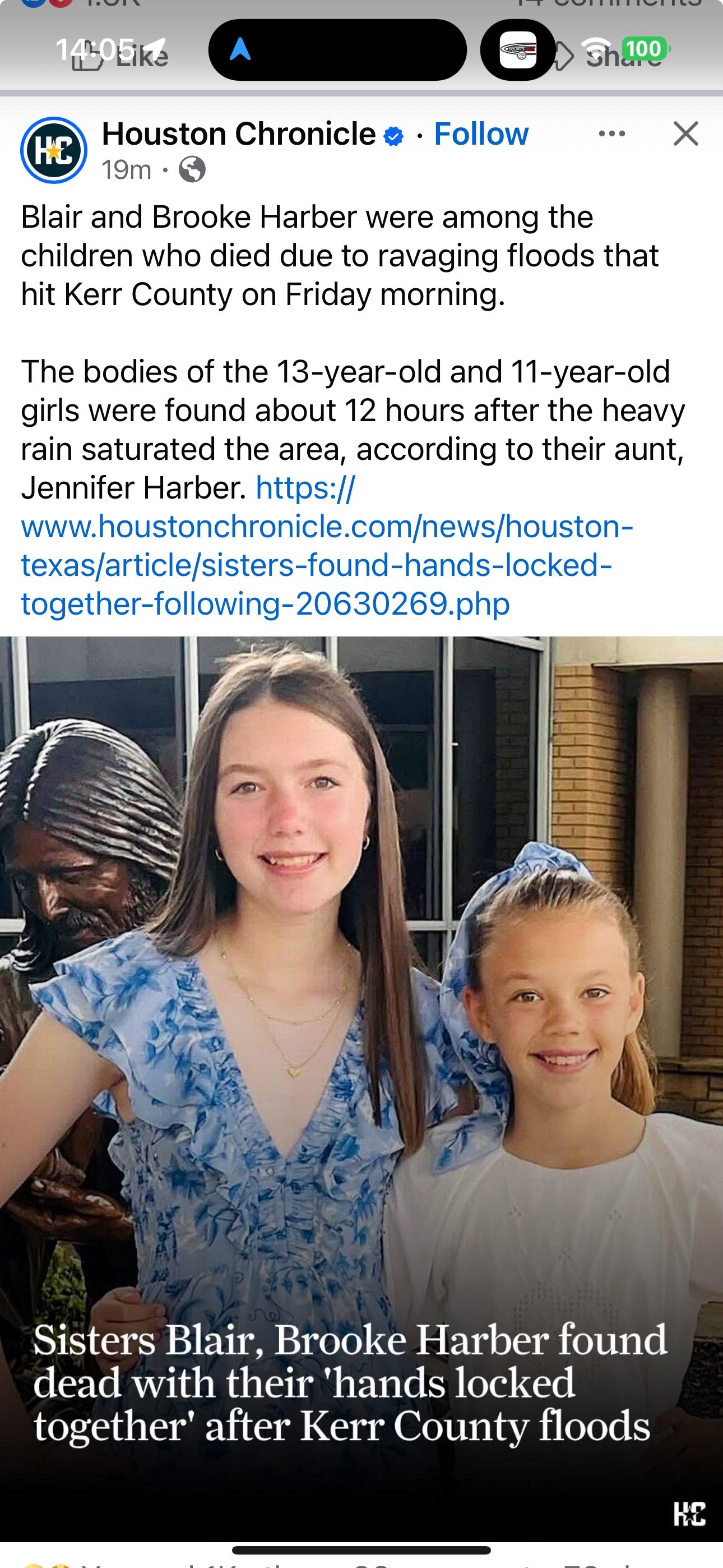
22 pointsSarah Marsh, Lila Bonner, Eloise Peck, Janie Hunt, Renee Smajstria, Linnie McCown, and Anna Margaret Bellows have all been recovered and publicly identified as victims. Lila and Linnie's parents are friends of ours.22 points
-
22 pointsI understand, at least remotely, what these fathers are going through—how they try not to hope for the best for fear that the fall from hope will be even harder. Several years ago, I was with my son at Buffalo Trail Scout Ranch in the Davis Mountains. Near Balmorhea. One morning, we were set to hike up a trail that ran alongside a dry creek bed. It was several miles to a swimming hole. Before we left, the camp called the folks at the McDonald Observatory—since they were farther up the creek—to check conditions. Despite a little rain the day before, they reported no significant change in the creek bed. So we set out and reached the swimming hole without incident. After about an hour, the boys got out, dried off, and started dressing to continue the hike. A few scouts, including my son, wanted to return early to make their afternoon merit badge classes. A couple of adults left with them. The rest of us continued in the opposite direction. Within minutes, we were cut off. A wall of water had surged down the creek bed behind us. The swimming hole the boys had been in twenty minutes earlier was gone—buried under twenty feet of water. That began the longest six hours of my life.I had no idea what happened to my son. Every terrifying image imaginable raced through my head. I paced the banks like a caged animal, desperate and helpless. At one point, I even considered trying to float downstream—nothing seemed too irrational if it meant finding him. After a couple of hours, help arrived. Camp staff brought horses and heavy rope. We worked our way back toward camp, crossing the raging stream over and over. The horses would carry ropes across, the riders tie them off, and adults would brace themselves in the current while scouts passed from one adult to the next. We must’ve done it seven or eight times. Each time a scout crossed, all I could think was: Where is my kid? The riders hadn’t seen them. A few times, kids lost their footing and I grabbed them to keep them from being swept away. Still, my thoughts never left my son. When we finally reached camp, I saw him—safe, standing by the creek bed, having just made it out before the water rushed in behind him. There is no describing the sheer relief of hugging your child after believing you may never get to again. i’ve been sitting here for 48 hours hoping that every parent who’s facing the unthinkable just gets to feel that same overwhelming wave of gratitude. It’s heartbreaking.22 points
-
22 pointsReal issue is that the state can and will spam text you awake at 4am bc a cop got shot 18 counties over, but not use the same system for catastrophic and deadly flooding overnight22 points
-
20 pointsOne thing I meant to mention was the amount of support I observed driving my trailer from Comfort to Ingram. You cannot go a quarter mile without a smoker billowing, Webbers, pop tents, coolers full of tamales, etc. All just good people, strangers and residents alike, just trying to help. Each and everyone one of these places had someone waving a sign that said, “FREE FOOD AND WATER”. No questions, no nothing. Just please allow us to help in our own way. I almost had to pull over. It’s fucking dusty right now just typing this out.20 points
-
20 points
-
19 pointsI’d like to apologize to @BurntOrange&White @po elvis and @futureman for the vitriol. I’ve deleted the personal attack posts. I found out today that one of the missing campers, who was the young cousin of sisters who my daughters have known their whole lives, was one of the girls in the Bubble Inn Cabin and they recovered her body this morning This whole thing is terrible, and is bringing up some old personal and professional trauma for me in ways I never expected; plus I have two daughters who rationally I know are not in harm’s way but viscerally it feels like they are. I stand by my posts about facts over feelings; if you don’t like a post because you feel it’s political maybe just scroll past. It takes at least 2 to send a thread off the rails19 points
-
19 points
-
19 pointsAccording to one of the guys I was with in Centerpoint this morning, they found two girls alive about 3/4 mile from where we were searching. That’s all I know and all I heard. I’m desperately trying to confirm.19 points
-
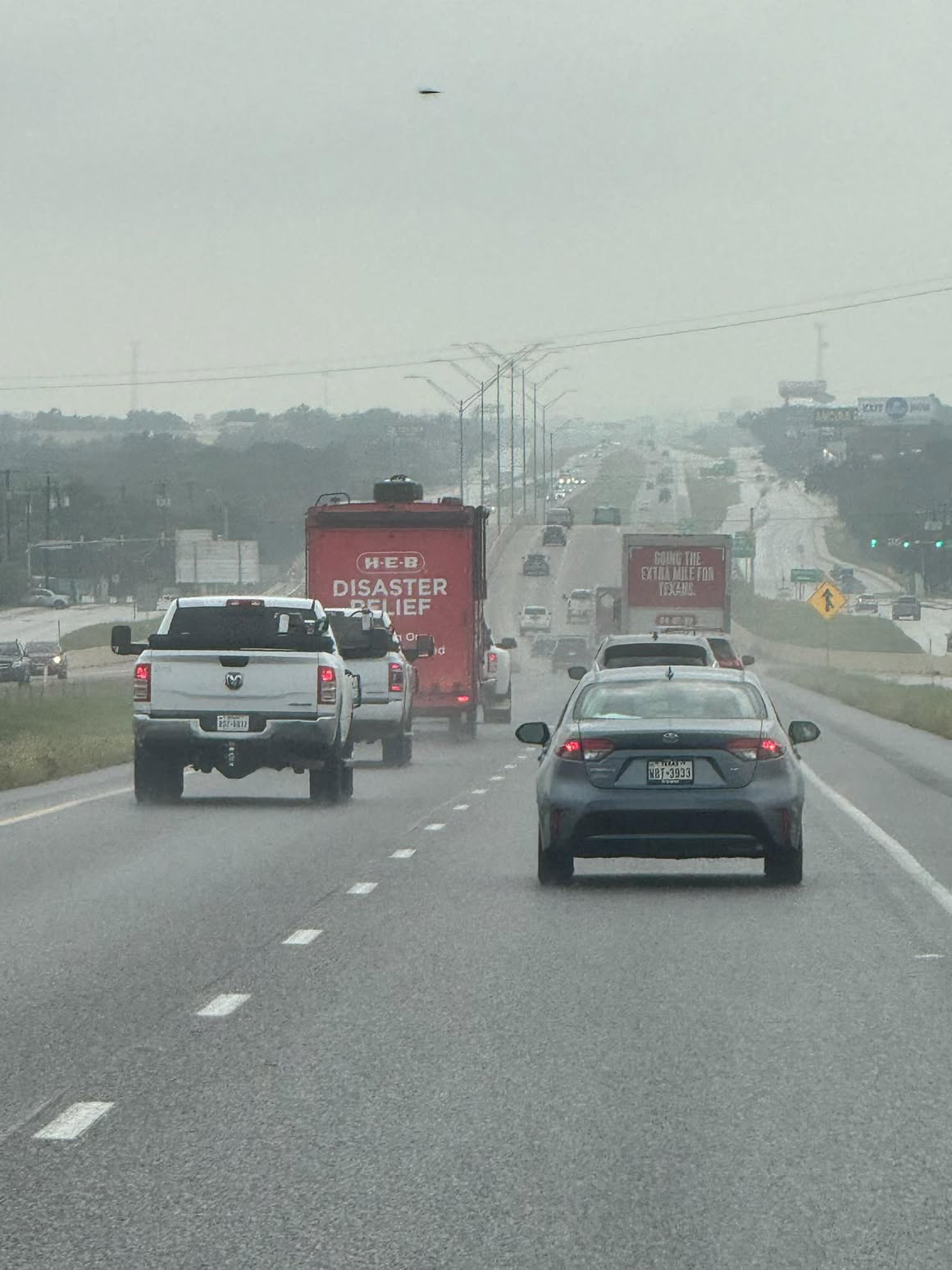
19 points19 points19 points19 pointsThe only thing I'm confident about is Texas will do absolutely nothing and voters will forget about it in a week19 points18 pointsThe two girls found in a tree phone call I received was from a friend who I’d been working with since about 7am. When he and I split up, he stayed there and waited for his brother (first responder). I relayed what he told me, via his brother. I asked him for confirmation, and he told me to hang tight. That’s when I posted. The link in the post that I copied went hand in hand with what I’d heard, but I’d not yet confirmed. I made the mistake of thinking that link was the confirmation needed. Now, it’s untrue. I don’t know how a game of telephone can get that fucked up with as close as I was from the source, but it did. And I can’t apologize enough. I’ll continue to post what I see first hand from here on out. Take it for what it’s worth. I guess I got too overwhelmed with some good news for the first time in three days.18 points18 pointsMy kid's school just notified us that a 3rd grader died in the Camp Mystic flood, and her dad is one of the few parents I know well there. Gut punch. Godfuckingdamnit. FUCK.18 points18 pointsIt seems really tasteless to follow a grieving dad around with a camera. Even with his consent…he is broken and is in no place to push back against media overreaching.18 points17 pointsI’m still in the process of processing. Took this afternoon off from the news and social media. Grew up going to Hunt. First to pick up my sister from Mystic (and I still hate James Avery as a result) then going to Stewart, then my nieces at Mystic and nephew at La Junta. My dad lives in Kerrville (it got interesting, but he is ok). Sister and nieces grew up and worked at Mystic. Know the Eastlands. Know the Ragsdales. Know some of the families. Have friends that are in Hunt and flooded but are ok. As they have said “everything you loved is gone or destroyed.” So happy that the posters here, like Homesick (who I know) and Blackcat (who I don’t - maybe) are ok and with their families. I know what these camps stand for and hope they all continue. I don’t like letting tragedies win. Tale care everyone and hug those you care about.17 points17 pointshttps://www.facebook.com/share/1Af6kv5T2L/?mibextid=wwXIfr I’ve met this kid out at the skatepark. He’d go after work, bringing Gatorades for everyone, and teaching kids like my son how to skate. Salt of the fucking earth.17 points17 pointsWe found plenty. But I’m not taking pics of dead pets or livestock. I’m not going to take pictures of dead anything.17 points17 points17 pointsSomeone should ask Abbott why he’s been sitting down for 40 years if prayers work.17 points17 pointsThis morning my 4 year old was pissing me off being wild and I came to this thread and suddenly it don’t matter anymore.17 points16 points16 points16 points"As she fought back tears, Olivera said to KGTV: “The only crime I committed is to love this country and to work hard and to provide for my kids.” So just like the vast, vast majority of immigrants you stupid twat.16 points16 points16 points16 points16 points16 pointswww.surlyhorns.com has been my most reliable source and im not even remotely kidding around!16 points15 pointsOnce again, if Sandy Hook didn’t move the needle with those people then nothing will. They will do anything to protect the cult leader and any empathy they pretended to have has been long gone in the name of ‘the cause’.15 points15 pointsThe fact that we don't run these shit goblins out of town at the end of our pitchforks goes to show how rotten our "Texas" culture is.15 points15 pointsSunday update: Not much to write this a.m. Situation is still somewhat similar, though with all the rain the atmosphere became more stable and so rain development this early a.m. not as extensive. Mason County has a flash flood warning because the deluge chose that spot early this morning, but the rain was limited in area. Today flood threats remain, hence the flood watches remain in effect throughout Sunday. I think that with diurnal heating today it'll be a more "normal" rain day, i.e. showers/storms building in the afternoon into a complex of scattered thunderstorms. NWS however is saying that some of their models are calling for early A.M. Monday downpours mostly in the Hill Country, aggravating the flooding situation. However, like early morning today, they didn't form in very many places, so I'd expect a limited formation early tomorrow morning as well. While this situation isn't completely over, it's decreasing and I don't expect any major re-igniting of it. Nevertheless with this stubborn MCV* in place, nothing is normal with this thing. Looking into Monday and Tuesday, the system will be pushed west, possibly far enough to be cut off from the moisture feeding it (into dry W. Texas air) and dissipate or get kicked up and out of Texas finally. Too early to know. A ridge of high pressure will be coming up from the coast starting early tomorrow. But although these highs are drier and hotter, the immense amount of moisture in the ground now will result in more of a typical "coastal showers" pattern for a few days; that is, still humid while warming up into the mid-90's through the week. Probably something like 30% mostly for the next few afternoons. Until this area takes a breather and the ground fully absorbs the large amounts of rainfall, flooding will be in the picture. I'd say if development is as expected, we'll finally be more or less "normal" (hot, but still humid for now July days). I guess if there's any upside to this, and comparatively it's not much, it's that we won't see 100° temps for at east most of this week, making some 45 days or so since we had one. Yeah, I know, big deal considering the past few days, but I guess it's something - plus now I've jinxed it, probably be 104° every day from late July through mid-Sept. Hope not. Anyway the very wet ground around here will help keep afternoon highs down for a week or so because of all the moisture, plus the plants are pumping out O2, which cools a bit. I'll be back later today if situation gets bad somewhere, and later maybe early evening to do a narrative forecast for Monday before wrapping up this episode. Have a good Sunday, stay tuned for weather, and still be cautious near lakes or streams which are still not completely out of the woods, but a lot better than the past 48 hours.15 points15 pointsFuck, I love HEB. Just logging back in. My wife and I had to get out of the house this afternoon to stop watching news and doomscrolling, then went to her brother's early birthday dinner. After that, we met a buddyfor drinks because we needed to not be home. Now I'm fucking crying again.15 points15 points15 points14 points14 pointsI wish Sam Houston or Lyndon Johnson were around to cuff these phonies around the room until they cried. Then run out of town on the ends of pitchforks. Then airlifted to an active volcano for a last trolley ride to hell. All places are special. The way that Texas was special is pretty much all gone. Phonies in cowboy hats and boots appealing to the phonies in cowboy boots and hats that fill the state. I've never owned cowboy boots. I wear a cowboy hat when I'm going to be in the sun for an extended period of time. I'd like to cuff these phonies around the room until they cry. Who is with me?14 points14 pointsMy ordained wife was visibly enraged when I shared Abbott’s comment with her. Her first criticism was much like yours: what, did the families who lost kids not pray hard enough? The fucking lazy, and flat-out evil in that callous theology is horrific.14 points14 points13 points13 pointsThe great thing about Texas is that those same taxpayers will pay $6.6MM for a settlement to 4 whistleblowers against Ken Paxton who is dirty, corrupt, cheated on his wife, and still got re-elected to one of the highest government offices in the state. But yeah, emergency alert systems that could save the lives of young girls, that's a bit ridiculous to ask taxpayers to cover that cost.13 points13 pointsNo, we’ll all just get statewide 4am alerts that “a man in Amarillo in jeans and a t shirt backed his car into a police cruiser”13 points13 pointsYall wouldn’t believe how heartbreaking some of this is. Families are getting calls saying we have your daughter and demanding a ransom.13 points13 points13 points13 pointsNothing wrong with what you said. These people are charlatans and sociopaths.13 points13 pointsThis leaderboard is set to Chicago/GMT-06:00Football ... Basketball ... Baseball ... Other Sports ... Futbol ... 🤫995🤫 ... Gambling ... Movies & TV ... Music ... Hobbies ... Lulz ... Food & Travel ... Daily Texan ... Business & Markets ... Cloak Room ... Help ... For Sale ... Board Discussion ... Advertise... Tailgate Donations































Account
Search
Configure browser push notifications
Chrome (Android)
- Tap the lock icon next to the address bar.
- Tap Permissions → Notifications.
- Adjust your preference.
Chrome (Desktop)
- Click the padlock icon in the address bar.
- Select Site settings.
- Find Notifications and adjust your preference.
Safari (iOS 16.4+)
- Ensure the site is installed via Add to Home Screen.
- Open Settings App → Notifications.
- Find your app name and adjust your preference.
Safari (macOS)
- Go to Safari → Preferences.
- Click the Websites tab.
- Select Notifications in the sidebar.
- Find this website and adjust your preference.
Edge (Android)
- Tap the lock icon next to the address bar.
- Tap Permissions.
- Find Notifications and adjust your preference.
Edge (Desktop)
- Click the padlock icon in the address bar.
- Click Permissions for this site.
- Find Notifications and adjust your preference.
Firefox (Android)
- Go to Settings → Site permissions.
- Tap Notifications.
- Find this site in the list and adjust your preference.
Firefox (Desktop)
- Open Firefox Settings.
- Search for Notifications.
- Find this site in the list and adjust your preference.